How do I connect my Google Ads account to Bavian?
Updated 20 October 2026
Bavian runs your ads in your own Google Ads account, so it needs access to that account. You connect it when you set up Bavian, on the step Connect your Google Ads account. Later, you can reconnect it on the Connections page in Bavian.
Before you start
- Use the Google login that has access to your Google Ads account, directly or through a manager account. It needs Standard or Admin access, because Bavian makes changes in the account.
- Google may ask you to confirm with a passkey, the sign-in that uses your phone's or computer's fingerprint, face or PIN. If you don't have one, set it up first, because Google can take up to 7 days to accept a new passkey.
Connect your account
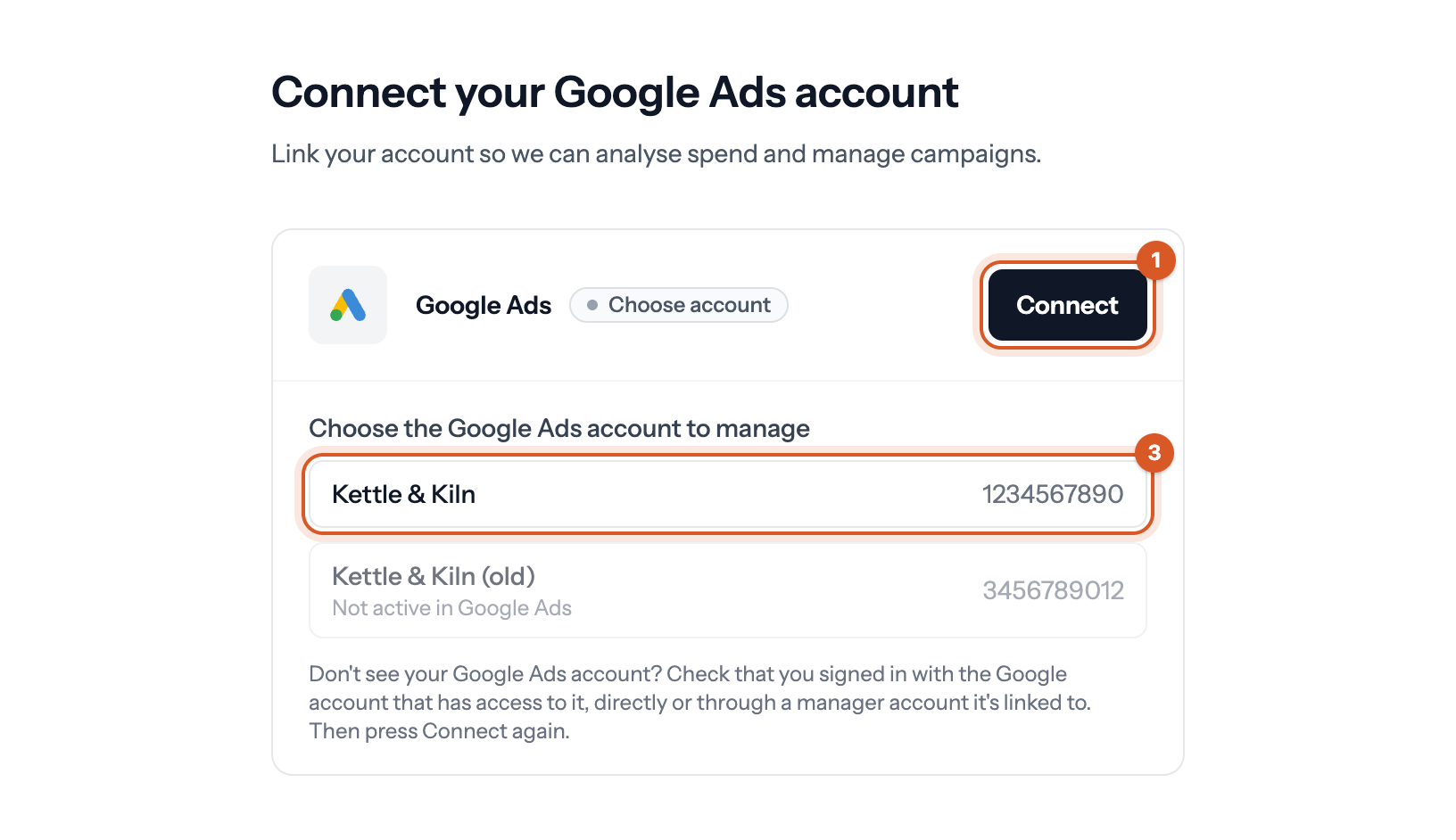
- In Bavian, click Connect on the Google Ads card.
- In Google's window, choose your Google login and approve the access Google asks for.
- If your login has access to more than one Google Ads account, choose yours under Choose the Google Ads account to manage. If it has access to only one, Bavian connects it straight away.
If it doesn't work
- No Google Ads accounts are available for this Google login, or your account isn't in the list. You signed in with a login that doesn't have access to it. Click Connect again and choose the right login, since Google asks which one each time.
- Not active in Google Ads, or Your Google Ads account isn't active. Finish setting up the account in Google Ads, which usually means adding billing details, or reactivate it if it was cancelled or suspended. Then click Connect again.
- This Google login can't manage it, or This Google login can't manage your Google Ads account. Ask an admin of the Google Ads account to give your login Standard or Admin access under Admin → Access and security, or click Connect again and choose a login that already has it.
- Already managed by another project. Another Bavian project already has this account, and an account can only be in one project at a time. If that project is yours, disconnect Google Ads on its Connections page first. If not, contact us.
- Your browser blocked Google's sign-in window. Allow pop-ups for Bavian, then click Connect again.
- Google's sign-in window closed before access to Google Ads was granted. If Google asked for a passkey you don't have, set one up and try again.
If the connection stops working
If Bavian loses its connection later, for example because the access you gave it was taken back, you'll see No active Google Ads connection. Click Reconnect Google Ads and connect again the same way.