Google Ads keeps two years of change history and lets you undo most changes from the last 30 days, but it has no restore button. Before a new agency or freelancer takes over, export a copy with Google Ads Editor, and ask whoever takes over whether you'll see every change and can have it undone.
Handing your Google Ads account to someone new, whether an agency, a freelancer or a new hire, is a good moment to keep a copy of how it looks today. Google Ads doesn't keep one for you.
It does keep a record, which isn't the same thing. A record tells you what changed. A copy lets you put it back.
The short version
- Google Ads shows two years of changes, but you can only undo changes from the last 30 days, one row at a time. There's no button that restores the whole account to an earlier day.
- Google Ads Editor, Google's free desktop app, can save the whole account as an archive file you keep yourself. That's the closest thing to a backup.
- A backup covers the setup, not the history. Your results stay in the account, and since June 2026 Google makes daily and weekly figures available for 37 months only.
- The most valuable thing to protect in a handover isn't a file. It's admin access to an account in your own name.
- Ask whoever takes over three things: does the account stay yours, can you see every change and why, and can their changes be undone? If all three are yes, most of the backup work is done for you.
What Google Ads keeps for you
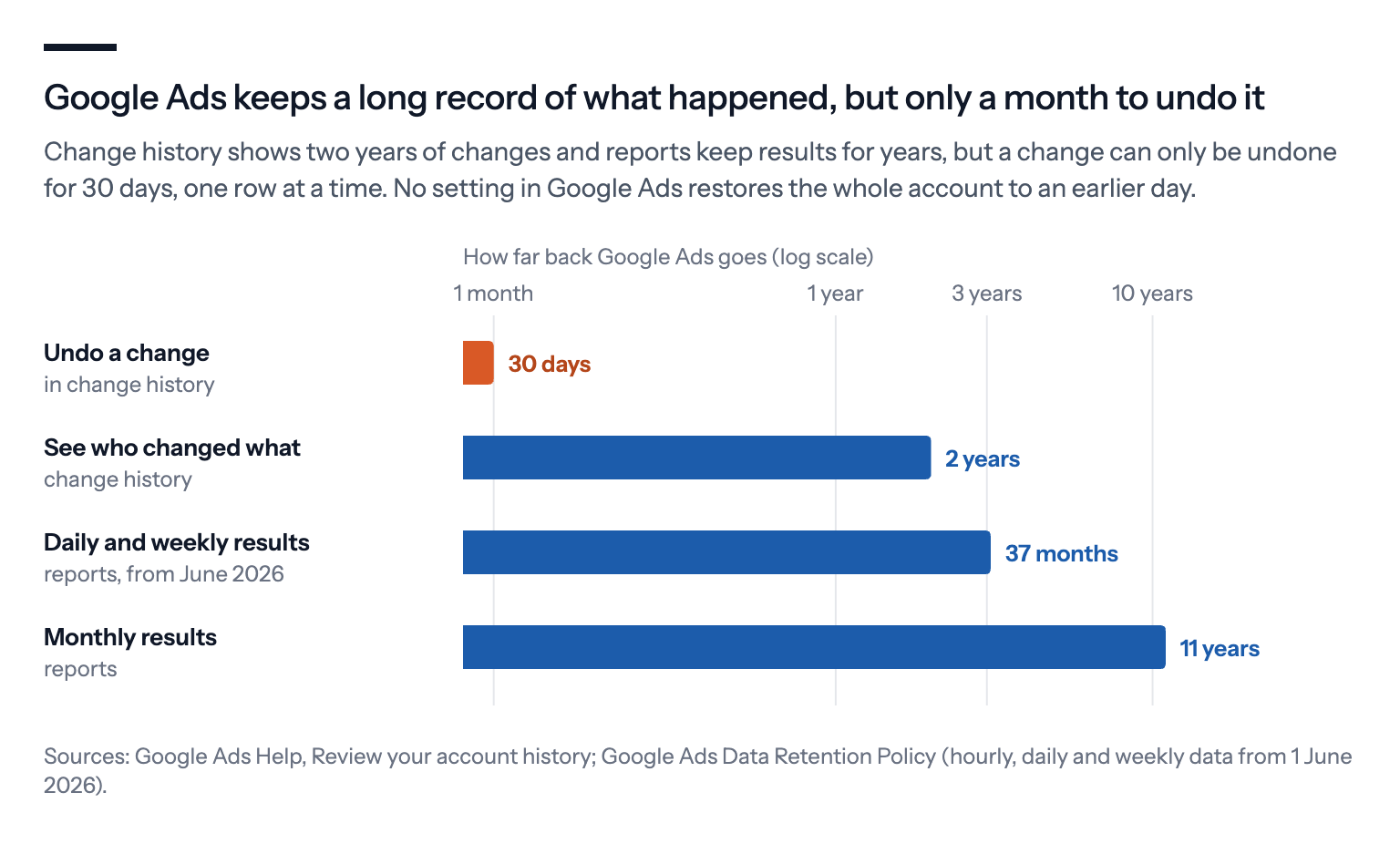
Change history. Google Ads shows the changes made to your campaigns over the last two years: by people in the account, and through automated rules, the Google Ads API and Google Ads Editor. You can filter by user, campaign or type of change.
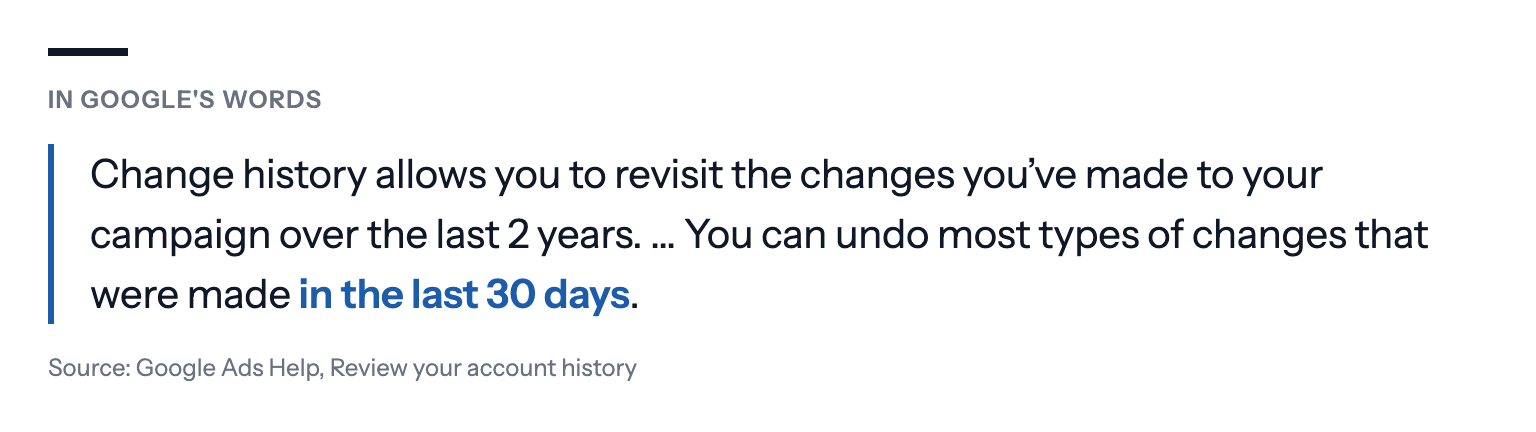
Undo for 30 days. You can undo most types of changes from the last 30 days with Undo in the change history. Some changes can't be undone, for example when the item they belonged to has since been removed.
That works for a handful of changes. It's no way to put a whole account back after weeks of someone else's work, because you'd be undoing it row by row, and only for the last month.
Your results, for longer. Performance data stays in the account when someone else takes over, but not forever. Under Google's data retention policy, from 1 June 2026, hourly, daily and weekly data is available for 37 months, and monthly, quarterly and yearly data for 11 years (reach and frequency metrics for 3 years). After that, it's gone from the interface and the API.
Export a copy with Google Ads Editor
Google Ads Editor can save a snapshot of the whole account as an Ads Editor Archive file, with the extension .aea. Google says the file also holds unposted changes, comments and draft campaigns.
- Open Google Ads Editor and click Get recent changes, so your local copy matches the live account.
- Go to Account, then Export, then Whole account, and choose AEA.
- Keep the file somewhere you'll find it, and name it with the date.
To go back, you import the file under Account, Import, From file. Editor then shows what would change, and you accept or reject the changes before you post them.
Google uses the same trick for short promotions: save an archive, post the sale ads, and import the archive when the sale ends. It also gives the warning that matters most in a handover. If other changes were made in the meantime, such as bids or campaign settings, reject the imported changes that conflict with them, or they'll be cleared.
So an archive isn't an undo button for everything since the handover. It's a way to bring back what you choose, with your eyes open. A campaign that has been removed since can't be restored, only rebuilt as a new campaign without its history.
Editor versions 2.10 and older stopped being supported on 19 October 2026, as we noted in our September–October roundup, so update it before you rely on it.
What a backup doesn't cover
An archive holds the setup of the account: the campaigns, ad groups, keywords, ads, bids, budgets and settings. Most of what makes an account valuable lives somewhere else.
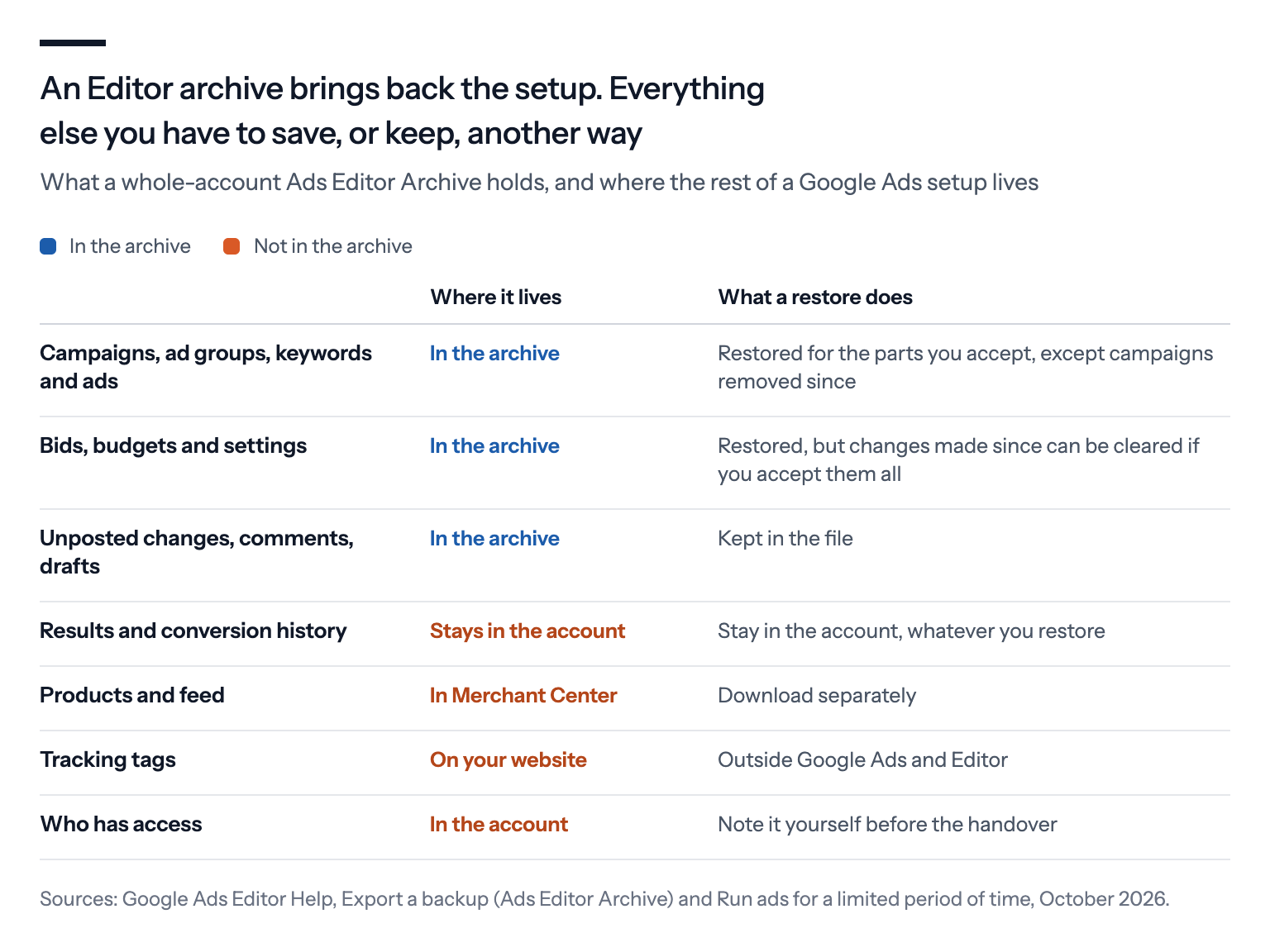
Some features. Editor doesn't cover everything Google Ads can do. Google lists some features as read-only in Editor, such as shared budgets, or not supported at all, and newer features often reach Editor later. An archive can't hold those, so a restore leaves them as they are in the account.
Your history. Results, conversion data and the learning behind Smart Bidding live in the account. A restore doesn't bring them back or remove them, and nobody can take them with them, as long as the account is yours.
Merchant Center. Your product data lives in Merchant Center, not in Google Ads. If your feed is managed there, download your product data separately.
Your tracking. The tags on your website, and whoever controls them in Google Tag Manager or your shop system, are outside both.
Who owns the account matters more than any file
The worst handovers usually don't fail because nobody made a backup. They fail because the business doesn't own the account.
JumpFly, a US agency, describes a client who wanted to leave an agency and only then learned that the agency owned the Google Ads account. The agency agreed to hand it over, but threatened to delete the strategy and campaign history first. In the end, the client concluded it had to stay with the agency, because "the historical data was too valuable to lose".
An account in your own name, with your own admin access, avoids that. The agency is then added to it as a user or through its manager account, and a tool connects through a user's Google sign-in. Either can be removed again without taking anything with it.
Google has tightened who can change access this year. In accounts with more than three admins, multi-party approval now asks another admin to approve sensitive changes, such as inviting a user or changing someone's access level. A request nobody answers expires after 20 days, and Google's support can't approve it for you. Admins in a linked manager account, such as the agency's, can approve too, so make sure at least one of the other admins is someone in your business.
What to ask of whoever takes over
An archive is a safety net for a handover you can't see into. The better protection is a handover you can see into. Before you give anyone access, ask three things.
Does the account stay yours? They should be added to your account, not move you into theirs, and you should keep admin access.
Can you see every change, and why? Google's change history shows what changed and who changed it, but not the reason. Ask how you'll be told what was changed and why, without having to read change history yourself.
Can their changes be undone? Google's undo covers 30 days, one row at a time. Ask whether they keep their own record of how the account looked before, and whether they can put their own changes back on request.
If the answer to all three is yes, the archive becomes a belt-and-braces extra rather than your only way back.
What we'd do
Export a whole-account archive the day before an agency or freelancer takes over, and again before any big restructure.
Write down the numbers that matter today: spend, conversions, conversion value, cost per conversion and ROAS for the last 30 and 90 days. They're your yardstick later.
Download the reports you'll want in three years. If you compare years by day or week, export them now, because daily and weekly data disappears after 37 months.
Keep admin access yourself, with a company email. Give whoever takes over the access they need, keep the account in your own name, and check who the other admins are.
Check change history every week for the first month. It's the quickest way to see what's actually being changed, and by whom.
If you use Bavian, it answers yes to the three questions above, so you can skip the archive and the weekly check of change history. The account stays in your name and Bavian connects through your own Google sign-in. It shows every change it makes and why on the Agent page, and the changes also appear in Google Ads' change history. And it keeps a backup of your Google Ads account, so you can ask it in the chat to roll its changes back.