
A manager account starts empty. To get a client's Google Ads account into it, ask for their customer ID, send a link request, and have an admin at the client accept it. The account stays the client's. Here are Google's steps, the limits that stop a link, and why an agency shouldn't ask for ownership.
We recently talked to agency owners who had done the first step right. They had created a Google Ads manager account for their agency, signed in, and looked at an empty list. Then they got stuck: how does a client's Google Ads account actually get in there?
The answer is a link request. Your agency asks, the client says yes, and the client's account appears under your manager account. It takes a few minutes of work on each side. The details that trip people up sit around it: which number to ask for, who on the client's side can say yes, whether your agency should own the account, and what to do when Google refuses the link.
This guide goes through it in order, with Google's own steps and the limits that stop a link.
The short version
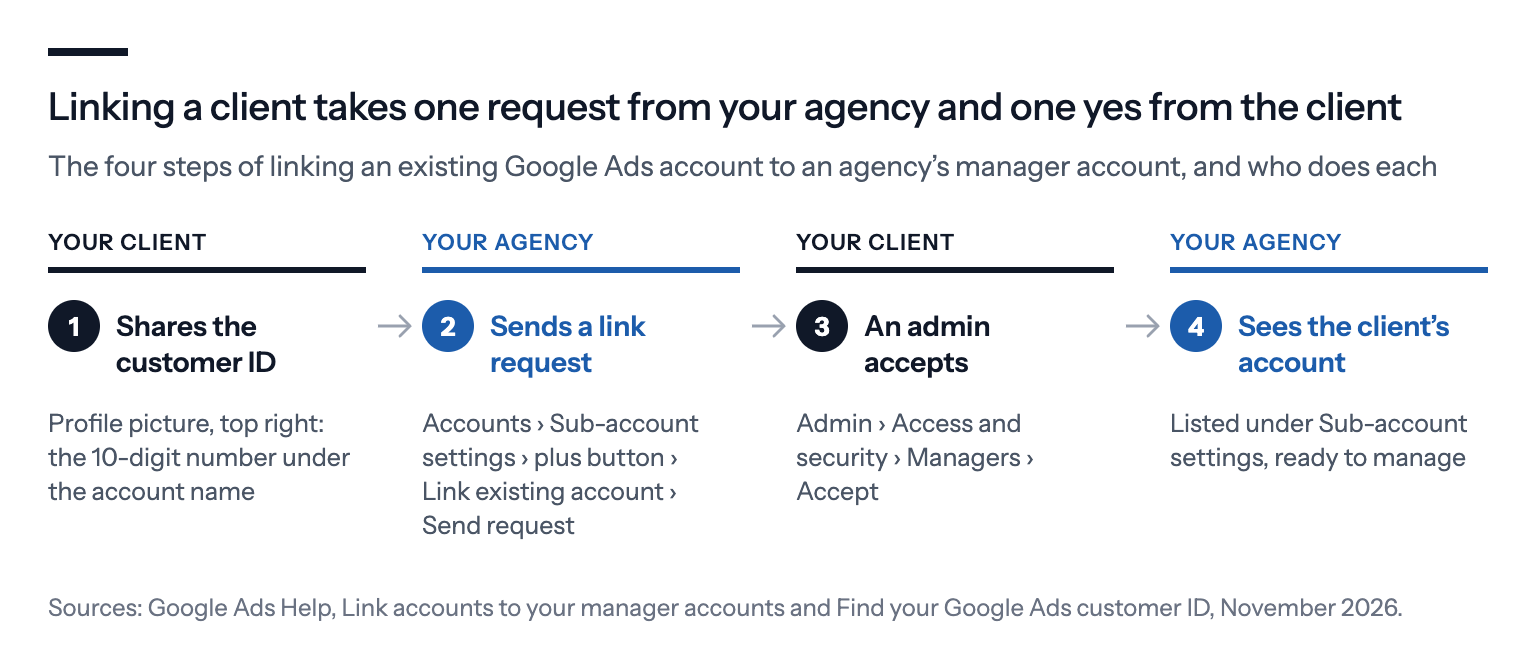
- Ask the client for their customer ID, the 10-digit number shown under their account name when they click their profile picture in Google Ads.
- Send a link request from your manager account: Accounts, then Sub-account settings, the plus button, and Link existing account.
- The client accepts it in Google Ads under Admin, then Access and security, then Managers. Only someone with admin access to the client's account can.
- The account stays the client's. Their history, logins, billing and card don't change, and they can remove your access at any time.
- Don't ask for ownership of an account the client already has. If you create a new account for a client from your manager account, invite the client as an admin straight away.
What a manager account link is, and what it isn't
A manager account is a Google Ads account of its own, built to reach other Google Ads accounts. Google calls it "an umbrella Google Ads account with several individual Google Ads accounts linked to it". It runs no campaigns of its own; it works in the client accounts linked to it. The link is what gives it something to manage.
A link isn't a transfer. Linking leaves the client's account as it was:
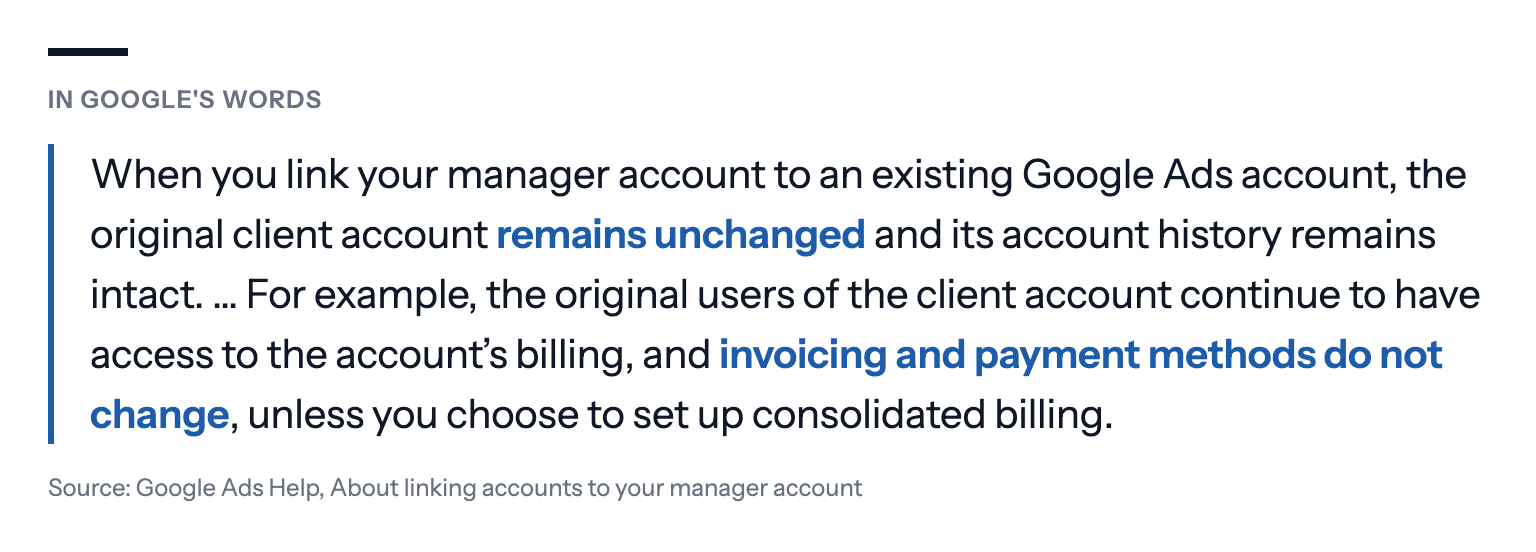
So the client keeps their campaigns, their history and their card. Your agency gets one login that opens every client's account, with the access level each colleague has in your manager account. And the clients can't see each other: Google says client account users "won't have access to the manager accounts they're linked to, or any other accounts that are linked to the same manager account".
If you haven't made the manager account yet, Google's guide to creating a manager account takes you through it. Two choices there are permanent, the time zone and the currency, so choose the ones your agency works in. The name you give it is the name your clients will see in their account.
Link a client's Google Ads account in four steps
1. Get the client's customer ID
Every Google Ads account has a customer ID, a 10-digit number shown as 123-456-7890. Ask the client to find it: they sign in to Google Ads, click their profile picture in the top right corner, and read the number under the account name. It's also on their old Google Ads emails and invoices.
Make sure it's the client's own advertising account, not a manager account their previous agency uses. If the client sees several accounts under their profile picture, ask which one their ads run in.
2. Send the link request from your manager account
Google's steps to link accounts:
- In Google Ads, sign in to your manager account.
- Click the Accounts icon, then Sub-account settings.
- Click the plus button and choose Link existing account.
- Enter the client's customer ID. To invite several clients at once, enter one ID per line.
- Click Preview, check the details, and click Send request.
Sending a link request needs admin access to your manager account. If the button is greyed out or Google says you need administrative access, ask whoever made the manager account to raise your access level.
3. The client accepts the request
Google emails everyone with admin access to the client's account. They can click Accept request in the email, or do it in Google Ads:
- In Google Ads, open Admin, then Access and security.
- Open the Managers tab. Your agency's request is under Link request.
- Click Accept in the Actions column and follow the steps on the page.
Send the client these three steps with the customer ID request, so they know what's coming. Your manager account's name is what the client sees in their account, which is one more reason to give it your agency's real name.
4. Check that the link is active
When the client accepts, Google emails you and the account appears under Sub-account settings in your manager account. Requests still waiting show under Sent link requests, where you can also withdraw one sent to the wrong ID.
If the client has no Google Ads account yet
Then don't link anything. Create the account from your manager account instead: on the accounts page, click the plus button and choose Create new account. Google links it automatically and makes your manager account its owner.
Three things matter here:
- The new account has no users. Google is explicit that nobody can sign in to it directly until you invite them. Invite the client with Admin access under Admin, then Access and security. Until there's at least one admin user, Google won't let you unlink the account from your manager either.
- Put the client's card on it. Add the client's own payment details when Google asks for them, so the client pays Google directly and the account is plainly theirs.
- Only critical alerts reach you by default. Google sends critical account alerts for a new account to the manager account's email, but not the rest of the account's notifications. Change the notification settings if you want them.
For an online store, the Google Ads setup guide for online stores covers what to set up next.
Ownership: why an agency shouldn't ask for it
Google lets one manager account be the owner of a client account. An owner manager can invite and remove the client's users, change their access levels, accept or unlink other managers, and change security settings. A linked manager doesn't get this by default; an admin of the client account has to turn it on, under Admin, then Access and security, then Managers, in the Owner column.
Google's own advice is restrained:
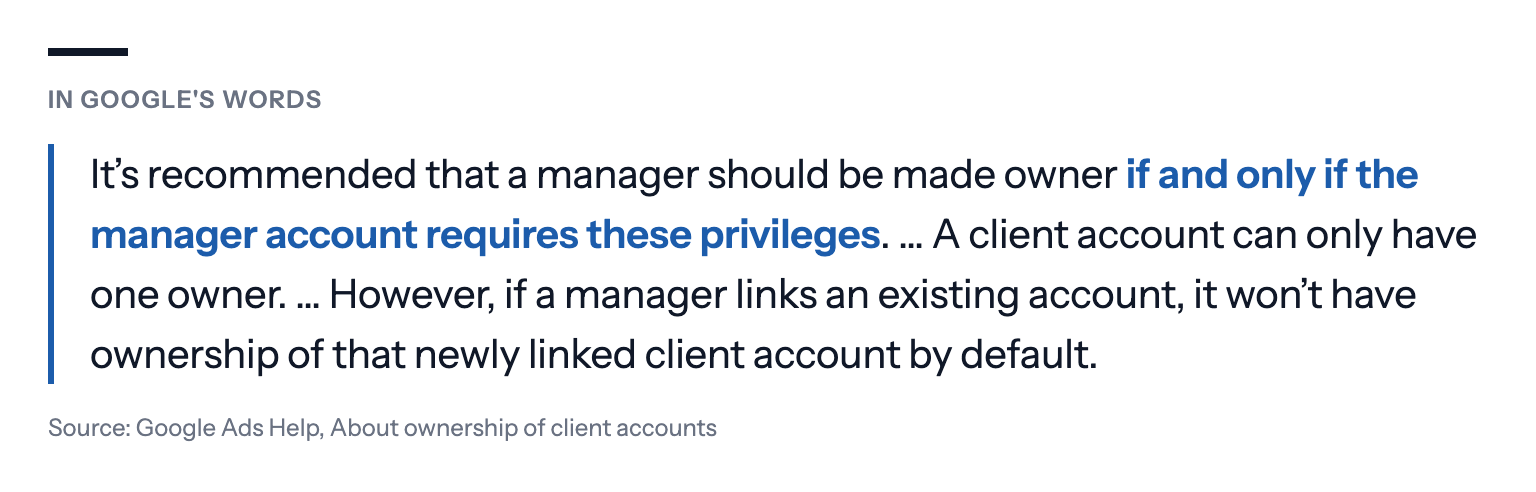
Running campaigns, writing ads and changing budgets don't need ownership. Only managing the client's users, other managers and security settings does. So for an account the client already has, leave ownership with the client.
The reason is the day the relationship ends. Sam Frost, an independent Google Ads consultant in New Zealand who sells account audits, writes that he bumps into clients locked out by their former agency "all the time", and that even being the one who paid Google is "no longer a guaranteed key" to getting the account back. His advice to businesses: "Aim to own your account and have your own payment method on file, simply granting the agency management access." That's one consultant's experience, not a survey, but it matches the way Google built the link: the client account owns its data and can always unlink.
For an agency, that's a selling point, not a threat. A client who knows they can leave in a minute is easier to sign.
Three ways to get into a client's account
A manager link isn't the only way in. A client can also invite your agency's email address straight into their account as a user, which the Help article on getting access to a Google Ads account walks through.
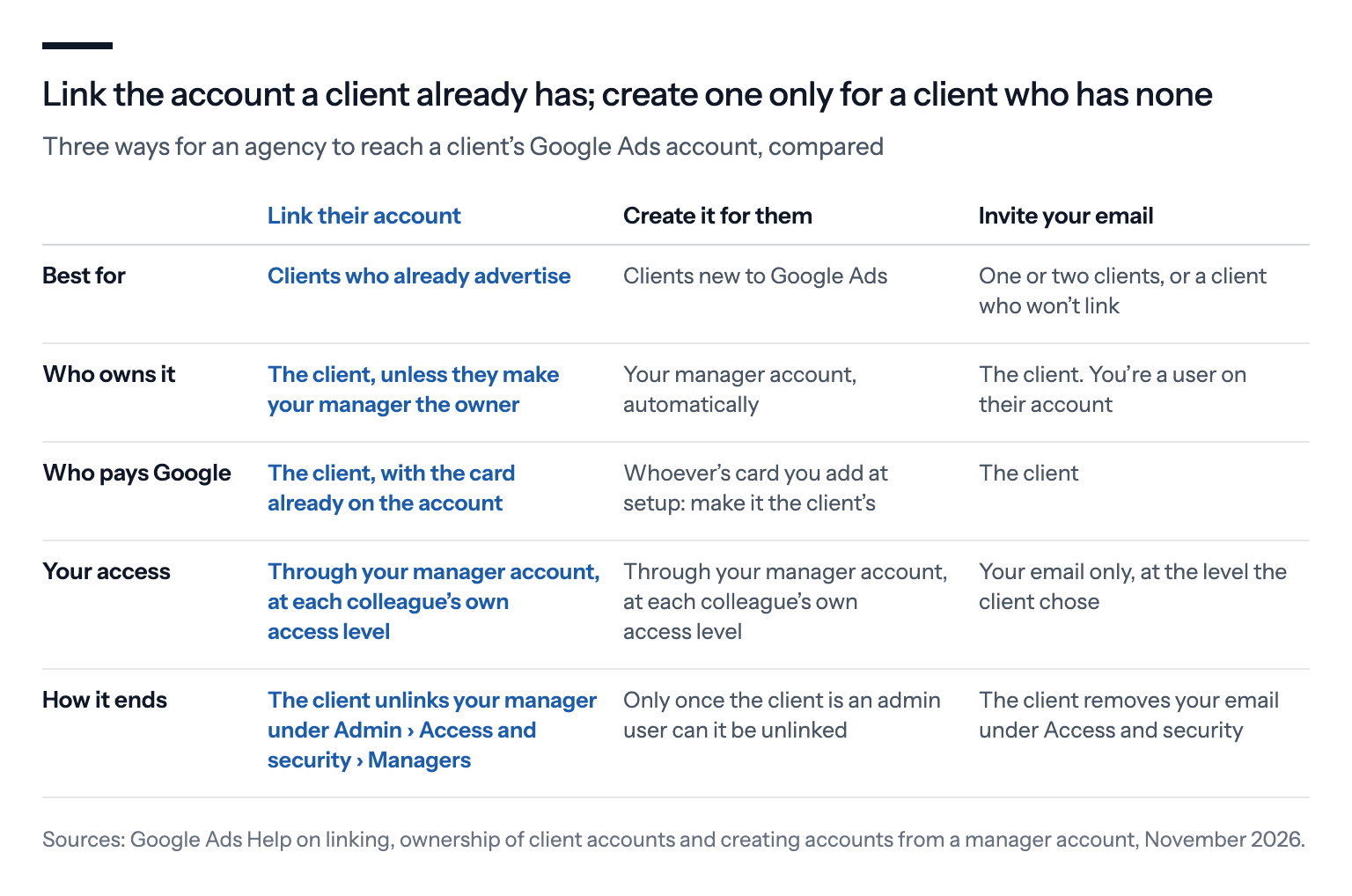
Direct user access is fine for one or two clients. From the third client on, the manager link wins: one login, every client in one list, and colleagues who come and go are handled in your manager account rather than in each client's account.
When Google refuses the link
When Google refuses a link, it's often one of a handful of limits. Google lists them on its page about linking and unlinking errors:
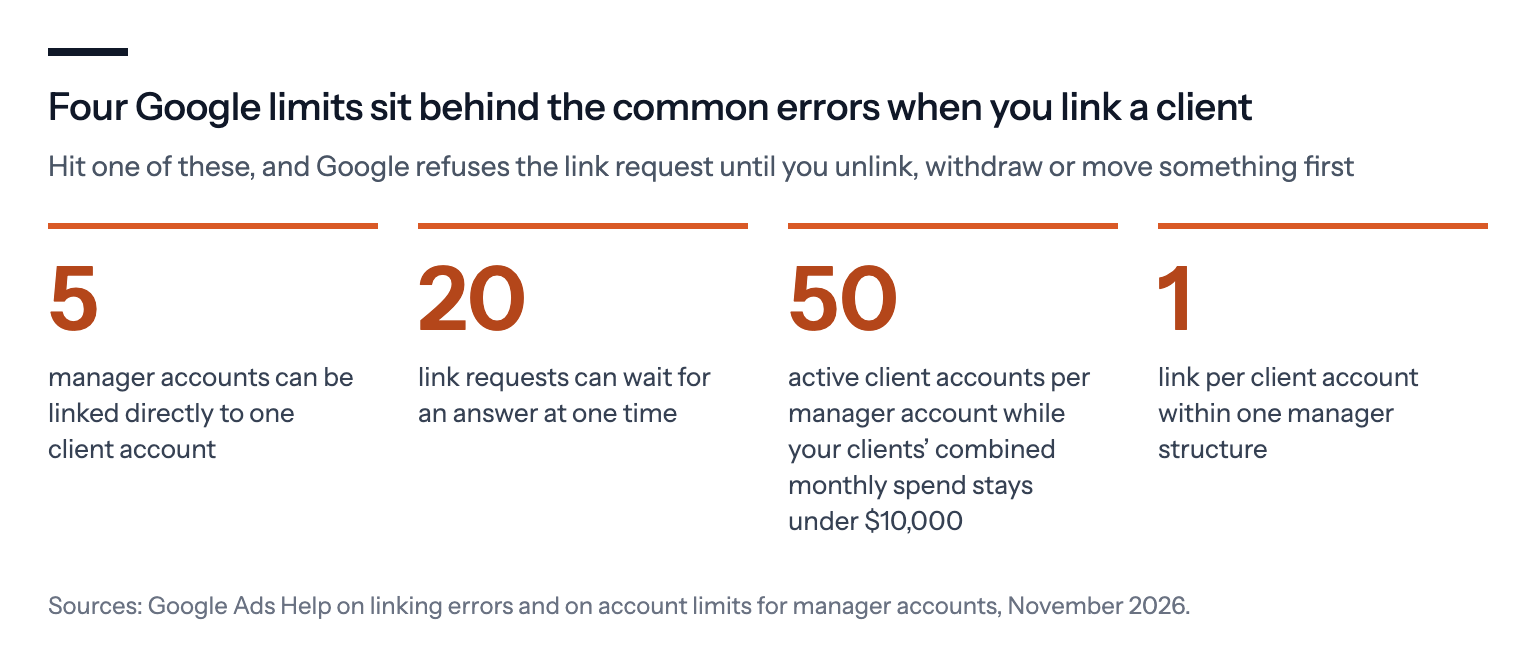
- "Invitee is already managed by another manager in your hierarchy." The client's account is already linked to another manager account in your own structure, such as a sub-manager or a manager above yours. Move it from there with Edit, then Change manager, instead of linking it twice.
- "You have reached the maximum number of managers." Five manager accounts are already linked directly to the client's account, usually old agencies and freelancers. The client removes the ones they no longer use under Admin, then Access and security, then Managers.
- "You have reached the maximum number of pending invitations." Your manager account has 20 requests waiting. Chase the clients or withdraw the old ones under Sent link requests.
- "You have the maximum number of accounts." A manager account can be linked to at most 50 active client accounts while your clients' combined monthly spend has stayed under $10,000 in every month of the last 12, and 2,500 from $10,000 up, according to Google's account limits. A new manager account with no spend starts at 50.
- The request never arrives. Not on Google's list, but common: nobody at the client has admin access any more, because the person who set up the account has left. The client needs to get admin access back first, because only an admin (or an owner manager) can accept.
Example: one agency, three clients
To make it concrete, take an example web agency with three clients who've asked about Google Ads.
- Client A, a garden centre, has run its own Google Ads for three years. The owner sends the customer ID, 123-456-7890. The agency sends the request at 10:00, and the owner accepts it from the email before lunch. Under Managers, the owner also sees the manager account of a freelancer who ran the ads in 2024. It's still linked, so the freelancer could still change campaigns. The agency suggests a backup of the account first, and the owner then removes the old link.
- Client B, an accountancy firm, sends its ID, but the request sits under Sent link requests for a week. The only admin was a partner who retired. The firm's office manager has standard access, which can't accept a link request. Once the firm has an admin again, the request is accepted the same day.
- Client C, a new bakery, has never advertised. The agency creates the account from its manager account, invites the owner with Admin access, and the owner adds the bakery's card.
Two link requests and one new account later, all three clients sit under the agency's one login, and every client still owns their account. Unless the clients' combined spend has reached $10,000 in any month of the last 12, the manager account can take up to 50 active client accounts.
Where a manager account link falls short
- It doesn't reach Merchant Center, Analytics or Tag Manager. Each has its own access. For an online store, the Merchant Center guide shows how to link Merchant Center to the client's own Google Ads account.
- It doesn't stop two agencies working at once. Up to five managers can be linked to one client account, and each can change campaigns. Before you start, check the Managers tab with the client and agree who's in charge.
- The client can unlink at any time, without notice. That's by design, and it's the right design, but your contract, not Google, decides notice periods and what happens to your work.
- Everyone in your manager account reaches every client, at their own access level. If a freelancer should see only some clients, Google's answer is a sub-manager: a second manager account under yours, holding only those clients.
- New accounts don't run forever unattended. Google cancels accounts created from a manager account after more than 120 days without activity, as it does with other accounts.
How to link a client's account cleanly
- Name your manager account after your agency. It's the name your clients see in their account.
- Ask for the customer ID and the acceptance steps in one message, and check who at the client has admin access before you send the request.
- Link the account the client already has. Don't create a new one for a client who already advertises, or the history stays behind in the old account.
- Leave ownership with the client, and put the client's card on any account you create for them.
- Clear out old managers with the client, after a backup, so only one agency can change the campaigns.
- Write down in your contract what happens when you part. Google lets the client unlink; your contract says what's handed over.
If you use Bavian, connect Google Ads with your manager account's Google login, and Bavian lists every client account under it, so you choose one per client with no separate login for each. Your login needs Standard or Admin access in the manager account; Bavian doesn't need ownership of the client's account. The Help article for agencies shows the steps, and the free analysis of the client's account is ready in 10 to 30 minutes.